Getting Started
Create your account, connect a WordPress site, and understand the basics.
On this page
Creating Your Account
Getting started with WP Auto Post takes just a minute.
Steps
- Go to app.wpautopost.ai/signup.html
- Enter your username, email, and a password
- Click Create Account
- You'll be redirected to the dashboard — you're ready to go!
Installing the WordPress Plugin
The WP Auto Post WordPress plugin adds support for SEO meta fields (title, description, focus keyword) when articles are published from the dashboard. It works alongside the standard WordPress REST API.
Download the Plugin
- Log in to your WP Auto Post dashboard
- Go to Profile
- Scroll down to the WordPress Plugin section
- Click Download Plugin to get the
.zipfile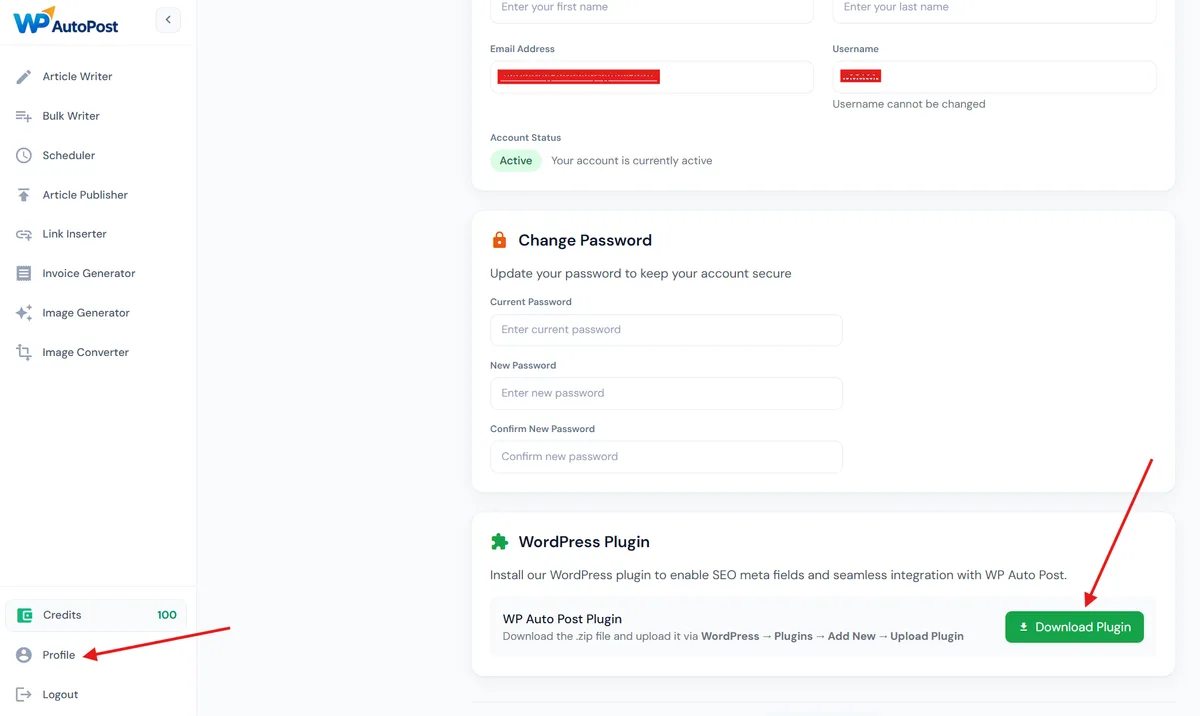
Install on WordPress
- Log in to your WordPress admin panel (usually
yoursite.com/wp-admin) - Go to Plugins → Add New → Upload Plugin
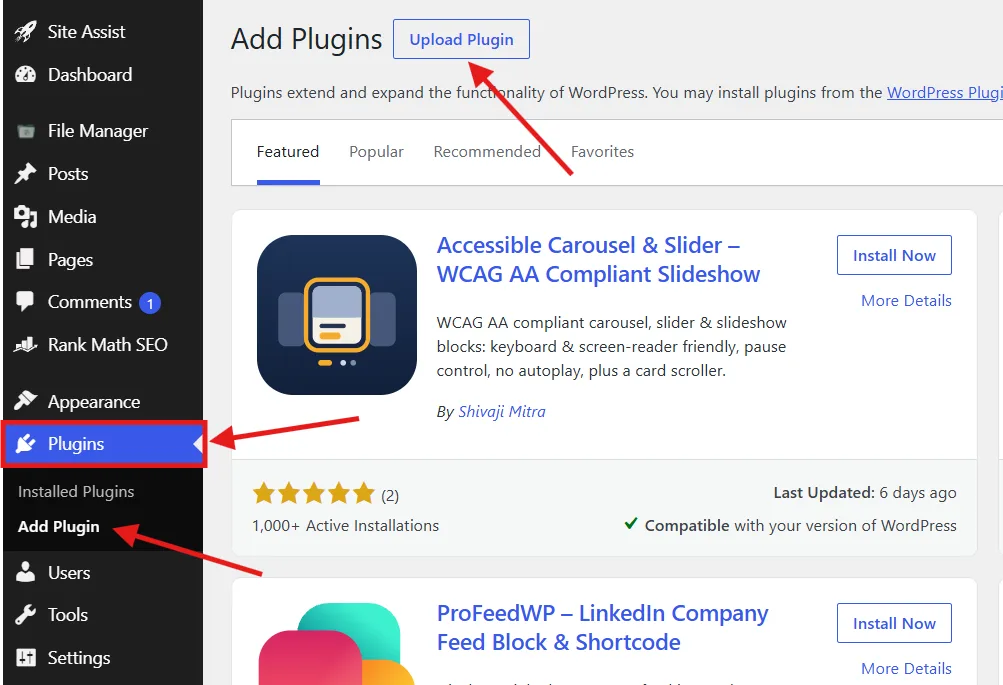
- Click Choose File and select the downloaded
wp-auto-post.zip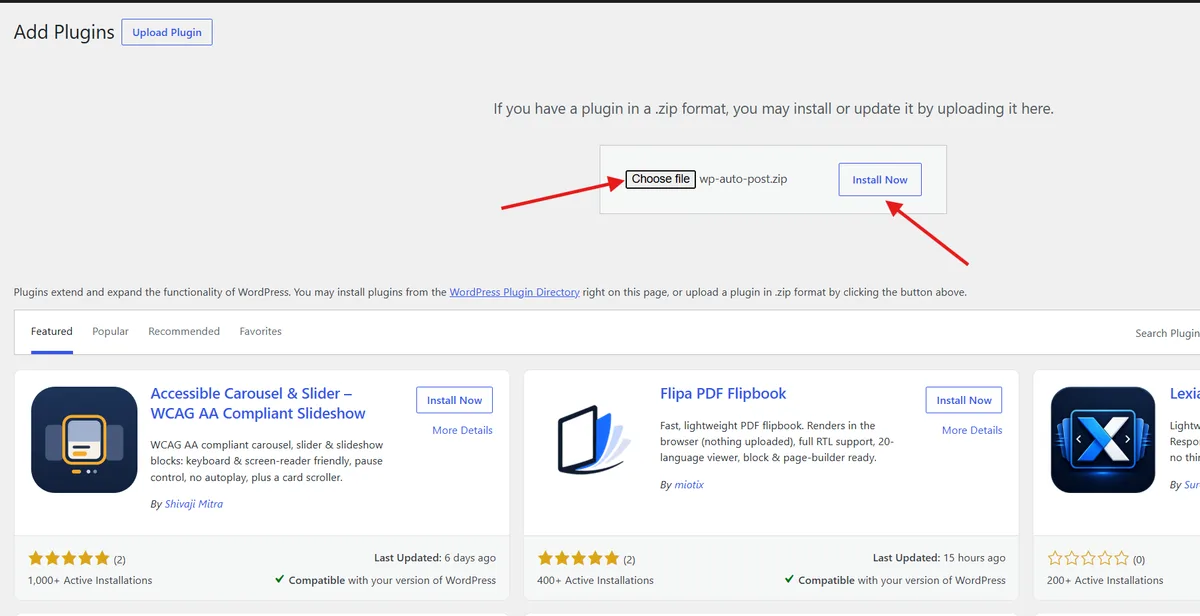
- Click Install Now, then Activate
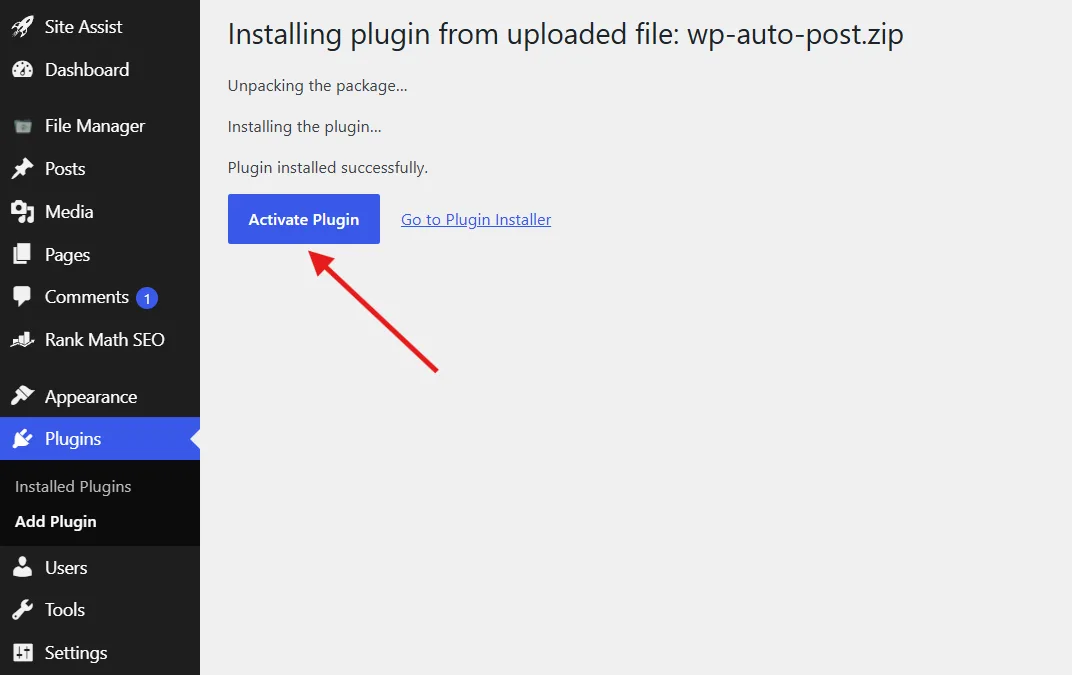
Connecting a WordPress Website
To publish articles from the dashboard, you need to connect your WordPress site using a WordPress Application Password.
Step 1: Create an Application Password in WordPress
- Log in to your WordPress admin (
yoursite.com/wp-admin) - Go to Users → Username (or click your username at the top-right)
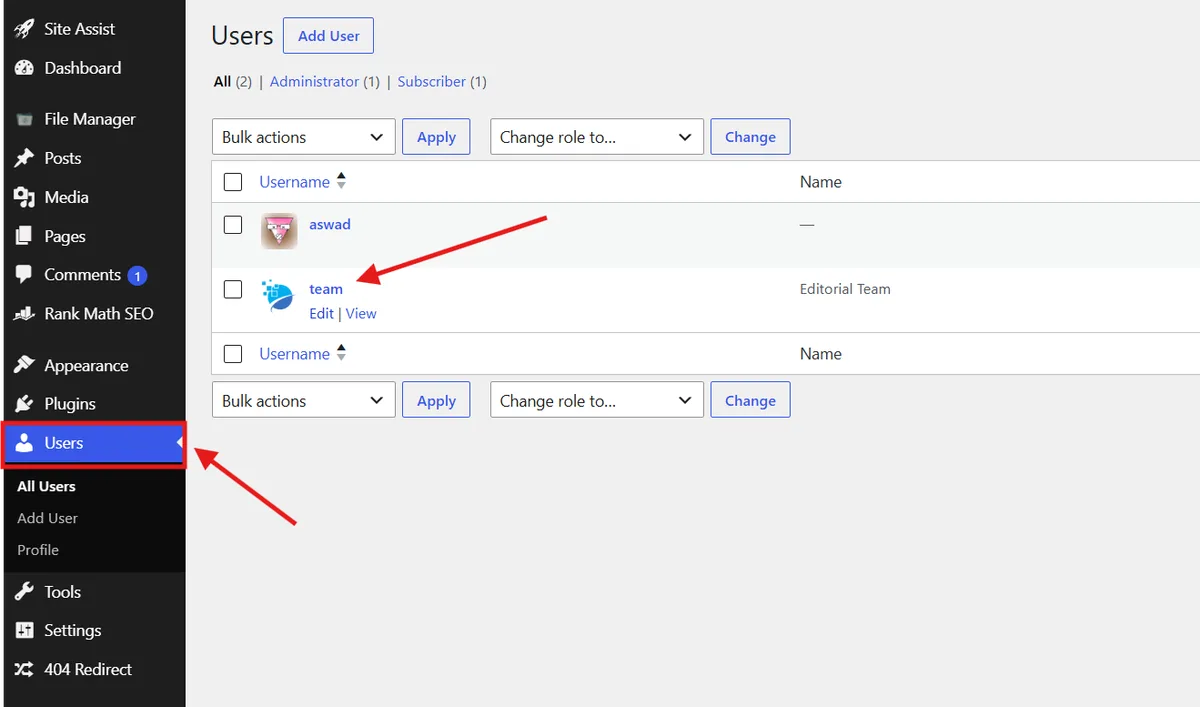
- Scroll down to the Application Passwords section
- Enter a name like "WP Auto Post" and click Add New Application Password
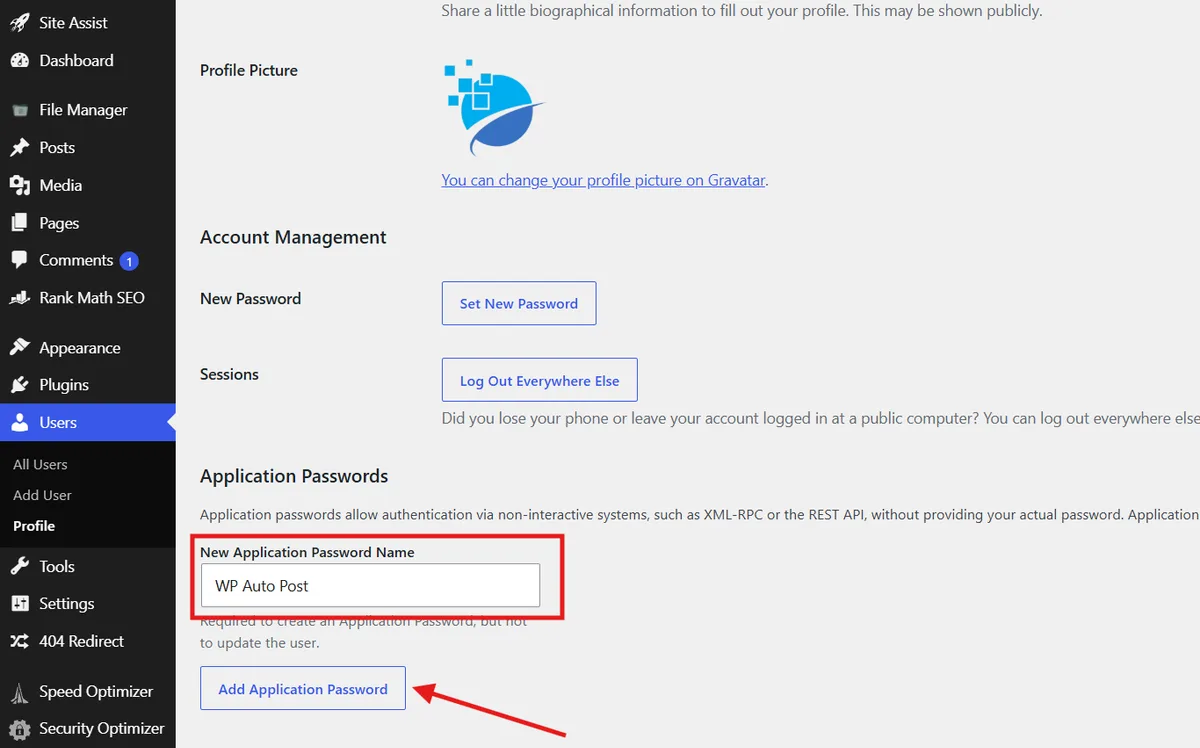
- WordPress will show a password like
abcd 1234 efgh 5678 ijkl mnop— copy it immediately (it won't be shown again)
Step 2: Add the Site in WP Auto Post
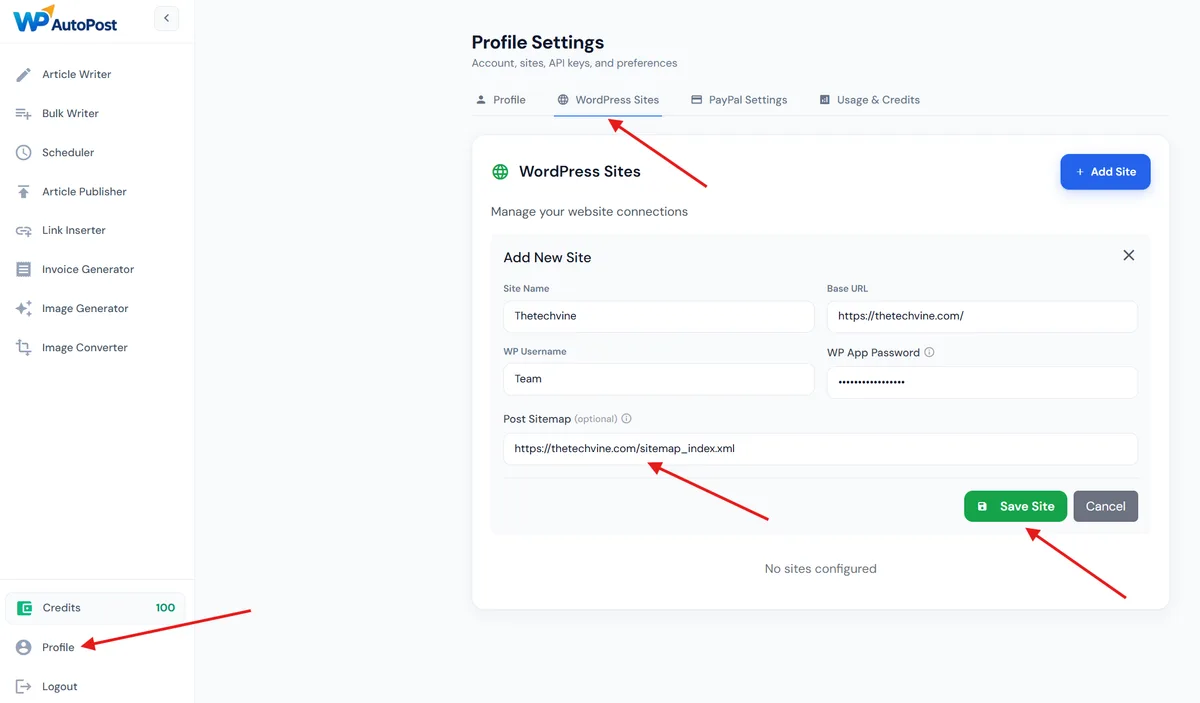
- In the WP Auto Post dashboard, go to Profile
- Scroll to the WordPress Sites section
- Click Add Site
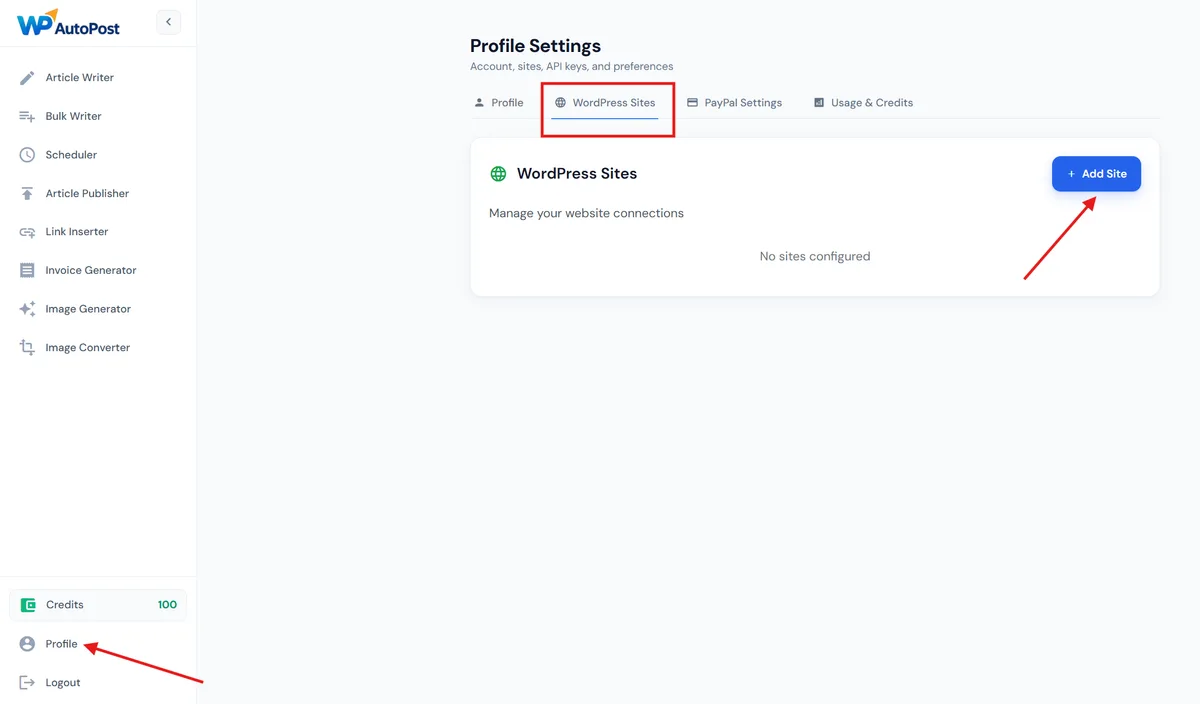
- Fill in the fields:
- Site Name — A label for your site (e.g. "My Blog")
- Base URL — Your site URL (e.g.
https://myblog.com) - WP Username — Your WordPress admin username (Same user whose application password you generated in the previous step)
- WP App Password — The Application Password you copied
- Post Sitemap (optional) — Your sitemap URL for internal linking
- Click Save Site
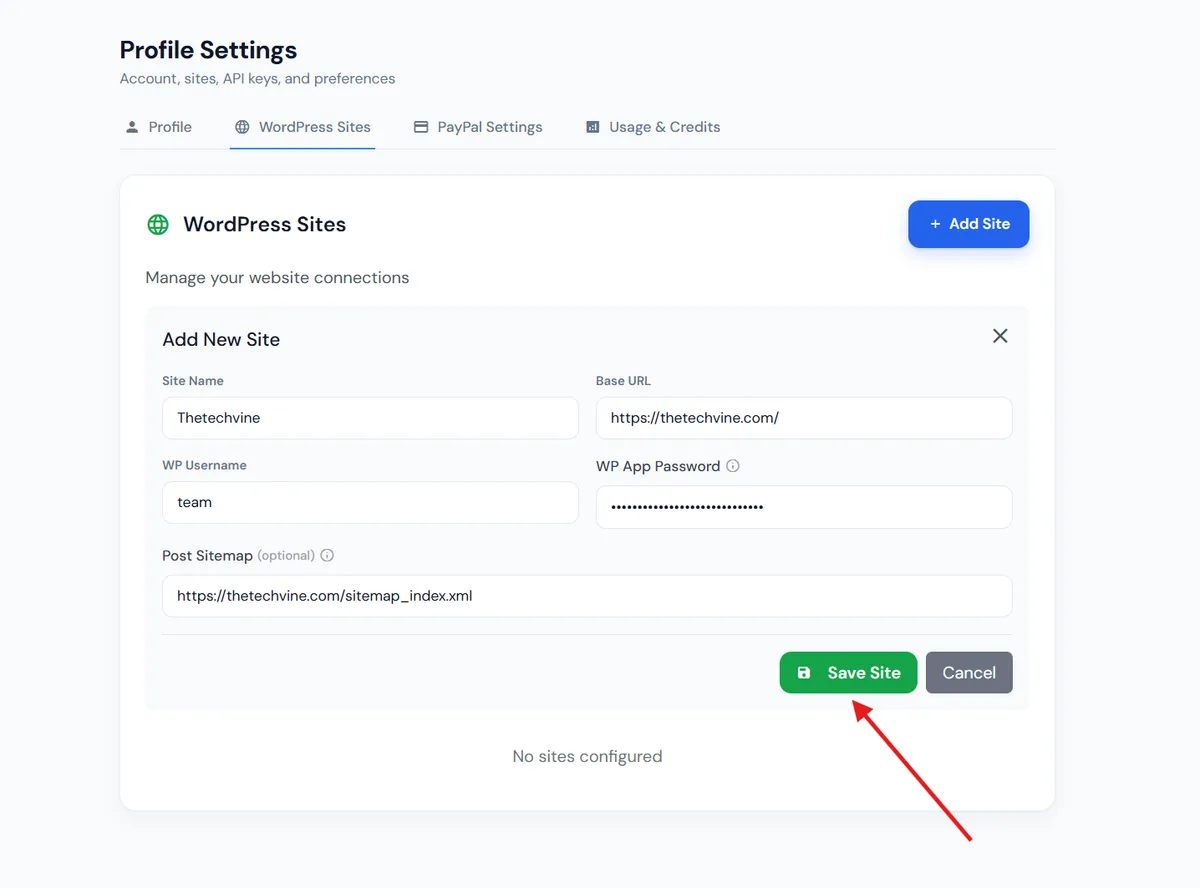
The dashboard will test the connection by creating and deleting a draft post. If authentication fails, double-check your username and Application Password.
Setting Up Your Sitemap
A sitemap is used by the internal linking feature. It lets WP Auto Post discover your existing pages and automatically add relevant internal links to new articles.
Finding Your Sitemap URL
Most WordPress sites have a sitemap at one of these URLs:
https://yoursite.com/sitemap.xmlhttps://yoursite.com/sitemap_index.xml(Yoast SEO)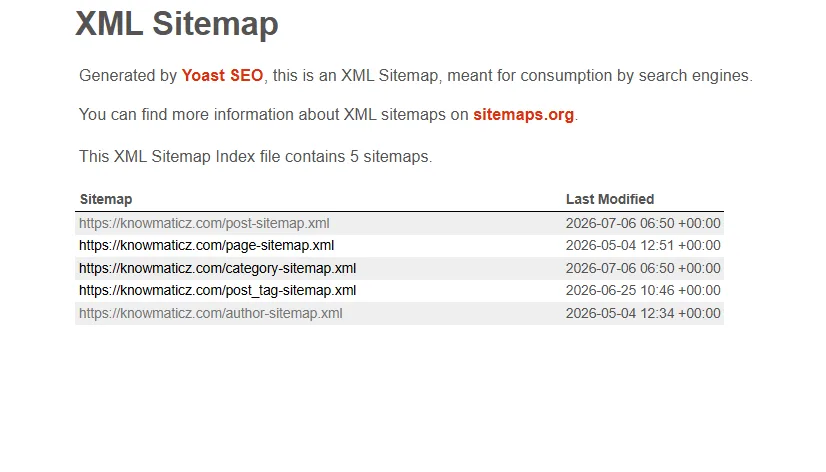
https://yoursite.com/wp-sitemap.xml(WordPress default)
Adding the Sitemap
- Go to Profile → WordPress Sites
- Find your site and enter the Sitemap URL in the Post Sitemap field
- Click Save
Understanding Credits
Credits are the currency used for all actions in WP Auto Post. Your balance is always visible in the sidebar.
Credit Costs
| Action | Credits |
|---|---|
| Generate an article (Article Writer) | 10 |
| Generate an article (Bulk Writer) | 10 |
| Process an article (Publisher) | 10 |
| Generate an AI image | 1 |
| Generate a PayPal invoice | 1 |